Showing posts with label customize blogger template. Show all posts

Thursday, 27 February 2014

How To Change Any Link Color In Blogger Via CSS Easily

In this post you will learn How to Change Link Color in blogger template; Post title color, footer links, sidebar links, link from post body and many other beautiful link color effects.

Interestingly in recent months bunch of creative developers and designers across the world has jumped in and has served Blogger platform with loads of freaking awesome templates. So, today for blogspot users of various niches, list of beautiful templates with multiple of different useful features are available. But still, sometimes user want to make some little tweaks like to changes color schemes, background images, comments box, minor changes in layout and etc. Especially in old and default blogger templates doing modification more common.

There could be any reason to change link in blogger. For example; user wants to make links more visible and stands out from text stack or, want to make design more attractive to enhance users experience and click through rate also, etc.

Recommended: How To Customize About Me Author Profile Widget

How To Change HyperLink Color In Blogger Default Template

It is much easy to change hyperlink color in blogger default templates because in these templates only a single color scheme is used for all links. To make changes in them go to Blogger > Template > Customise > Advance > Add CSS.

Now after that paste the following piece of code in Add CSS box.
a:link { color: #ff0000 !important; }
a:visited { color: #0000ff !important; }
a:hover { color: #38761d !important; }
a:active { color: #ff9900 !important; }
And then tap on Apply to blog button to save changes.

In case you are not familiar with html color codes or facing any difficulties then you can simply replace color code (for example #ff0000) with the name of desired color. Checkout following piece of code to get an idea of what I'm saying,
a:link { color: red !important; }
a:visited { color: blue !important; }
a:hover { color: green !important; }
a:active { color: orange !important; }

Recommended: Checkout Some Awesome Navbar Examples

How to Change Color of Specific HyperLink

In case you are interested to apply different color schemes on links within specfic sections forexample, Sidebar, any specific widget, footer links, post links, etc. then, you need to be little designer :P . The method is quite simple, you just need to mention the CLASS or an ID of that specific section before writing css code for link. For example, if I need to change the color of links only within blog post body (Bloggeristan) then I need to add following lines in Add CSS box.

.post-body a {
color: red !important;
}

To add hover effect you need add another line,
.post-body a:hover {
color: green !important;
}
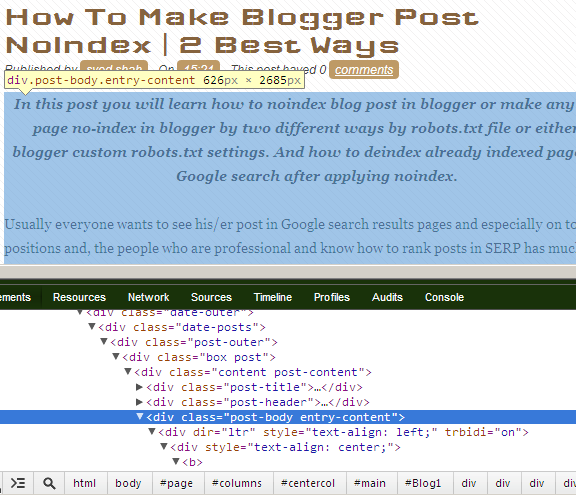
You can get the exact Class or ID of that specific location in Chrome by doing right click. Look at below screenshot for further detail.

change link color blogger blogspot

In the same way try to find the ID or Class of footer section, sidebars, specific widgets, etc. But one thing you should need to remember, use '.' to mention class and '#' symbol to specify ID.

Recommended: Learn How To Customize Blogger Permalinks and SEO Friendly

For your ease here are some common Classes and ID's most commonly used in Blogger / Blogspot default templates.

.post-body (to change color of all links inside post body)
.post-title (to change post title color)
.sidebar (to change all links color within sidebar)
.footer-outer (to change all footer links color)


If you still need help, In comments, along your blog url, just let me know what are you trying to achieve.
I hope this post will help you to learn how to change link color in CSS. Your feedback is Welcome as Always :)

Saturday, 22 February 2014

How To Make Images Unclickable In Blogger and SEO DisAdvantages

Learn how to make images unclickable in blogger easily and find out their SEO Advantages and Disadvantages, too.

In WordPress self hosted blogs users can make blog posts images not clickable by removing source link from click image > edit image > Advanced image settings. Whereas in Blogger blog posts there is no such option available by default. So, to make any image unclickable in blogger blog posts you have to remove the hyperlink of that specific image.

  • For doing so first you need to go in HTML version of blog post.
  • Then press ctrl+f and search for "<img " attribute.
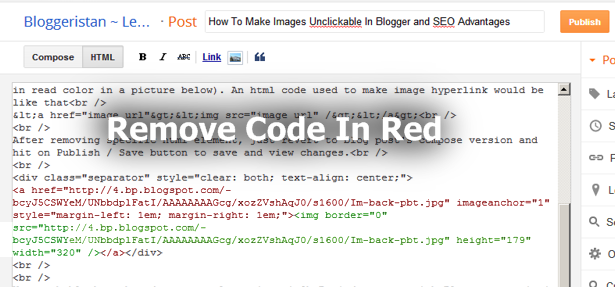
  • After accessing the desired image just remove the piece of hyperlink html line (marked in red color in a picture below).
blog post image

  • An html code used to make image hyperlink would be like that
  • <a href="image url"><img src="image url" /></a>
  • After removing specific html element, just revert to blog post's compose version and hit on Publish/Save button to save and view changes.

Blogger Images and SEO

You probably have heard many people saying Oh Boy! do not go with Blogger.com, it is not for professionals.. because its not SEO friendly... Well sincerely speaking I feel some weigh in their argument but I do not agree that Blogger is not SEO friendly. Because still I'm ranking only one page blogspot blogs in Yahoo, Bing and, In Google search on highly competitive keywords (which have millions of monthly searches only from US) by competing big Authorities in a span of only 1-2 weeks, only. Despite the fact, even after applying the same tactics (used to rank blogger blogs), self hosted blogs like on WordPress usually take little more time to rank in serp.

Recommended: Advantages of Blogger Over WordPress

Now the question comes, Is there any disadvantage(s) of using clickable images in blogger blog post? Well there is not any significant disadvantage of doing so. But when it comes to competition in Google search results, I consider each and every single aspect that can have any kind of effect in rankings. The only disadvantage I found in blogger blog images is that, as they are hosted on Google's domains so we have to mention the specific url on via src attribute where image is exactly hosted. And through this link our site pass link juices to the image link in the form of pagerank and authority. And it is not possible to make that image link nofollow to stop passing trust.

By the way many people also believes that via image hotlink no link juice flow occur. But if the image is hyperlinked (clickable) and you haven't mentioned any nofollow tag then it will must pass link trust. And by giving many dofollow outbound links you will for sure lose some rankings and link juice.

One more thing I would like to add their, giving two or three dofollow backlinks from a page of around thousand words does not reflect any bad effect on your rankings. Even giving backlinks to authority sites of same niche sends a good signal to Google and it is one of the factor out of 200 factors which are used by Google for rankings (but your outbound link should be of high quality and relevant).

Recommended: How To Make SEO Friendly Blog Posts Permalinks

Though one of the important advantage of using Google's hosting in aspect of SEO is that it helps to rank images far quickly in image search page, and this will result as few extra clicks to your website as a Bonus :) . Over to you!